Pro Tip: This is usually a good work-around to print from the computer lab if its
printers are being temperamental...
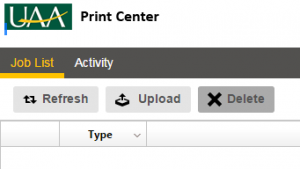
Login to the UAA Print Center using your university Login then...
Click the "Upload" button then select the file that you want to print from your device.
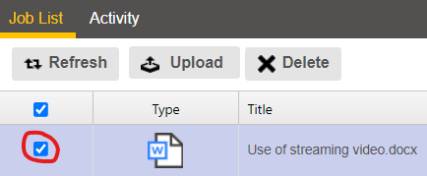
Your file will appear.
Wait for it to finish "processing". It may take awhile. If it takes more than a
minute, click the "refresh" button.
Check the box next to the file you want to print.
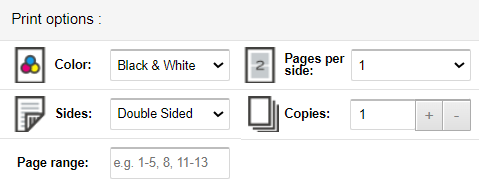
Choose the options for your print job. The default is black and white double-sided
printing. Even if you choose a color printer you will need to change the color option
from "black and white" to "color" so that your print will actually be in color.
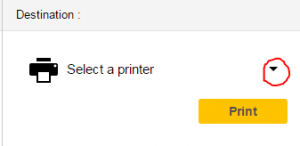
Select the printer by clicking on the triangle above the print button. This will
bring up the full list of printers that are available. Most of them are in Anchorage,
so don't just pick the first one you see. Instead...
Type "olb" in the search box at the bottom of the list of printers. This will give
you a list of the printers that are in the Okeson Library Building.
msc-olb115-bw1 is the black and white printer by the library's entrance.
msc-olb115-clr1 is the color printer by the library's entrance.
msc-olb115-e876 is the color printer by the audiobooks.
Select the printer you wish to use, and click the print icon by the search box.
Printing (Community members)
You will need to purchase a print card if you do not have a Wolfcard. Please see
a library staff member for assistance.
Add Wolfbucks for Printing
There is a kiosk in the library to add Wolfbucks to your card using cash. Students
may also add Wolfbucks to their accounts using a credit or debit card by visiting
the UAA WolfCard website